Blueprint · Tech Stacks
I Turned Claude Code's Status Bar Into Mission Control
I keep about twenty things going with Claude at once. The bar under the prompt is where I keep the one that matters in each tab, and it costs nothing to run.

On October 1 I found a Claude Code feature I didn't know existed. You can replace the bar under the prompt with your own script, and the script can draw whatever you want. By that evening I had a heads-up display running in it, a HUD, and I was showing it around. "I didn't know Claude had this feature," I said. "It doesn't tell you about it. It's a terminal feature. It's like a miniature app happening in the terminal."
A month later it's in every tab I open. This post covers how the status line works, what mine shows, how it shrank from thirteen rows to three, where its data comes from, and how to change it. At the end there's a starter script you can copy and have running in a few minutes. Every screenshot here is rendered from made-up data, by the same code that draws mine.
Why I wanted one
I give Claude a lot at once. "I give it like 50 things to do at once," I said that day. I keep several tabs open, each one on a different task, and I wanted the bar to answer one question every time I looked down: what is this tab for? As I put it that afternoon, "I was using it as a chance to remind me what I'm working on, because I keep having like twenty things."
How the status line works
The status line is a setting in Claude Code. Claude Code runs your command, pipes a JSON description of the session into it, and shows whatever it prints. JSON goes in, and lines come out. Mine is one entry in my settings file, pointing at a Python script called hud.py:
"statusLine": {
  "type": "command",
  "command": "python3 ~/.claude/focus/hud.py",
  "padding": 0
}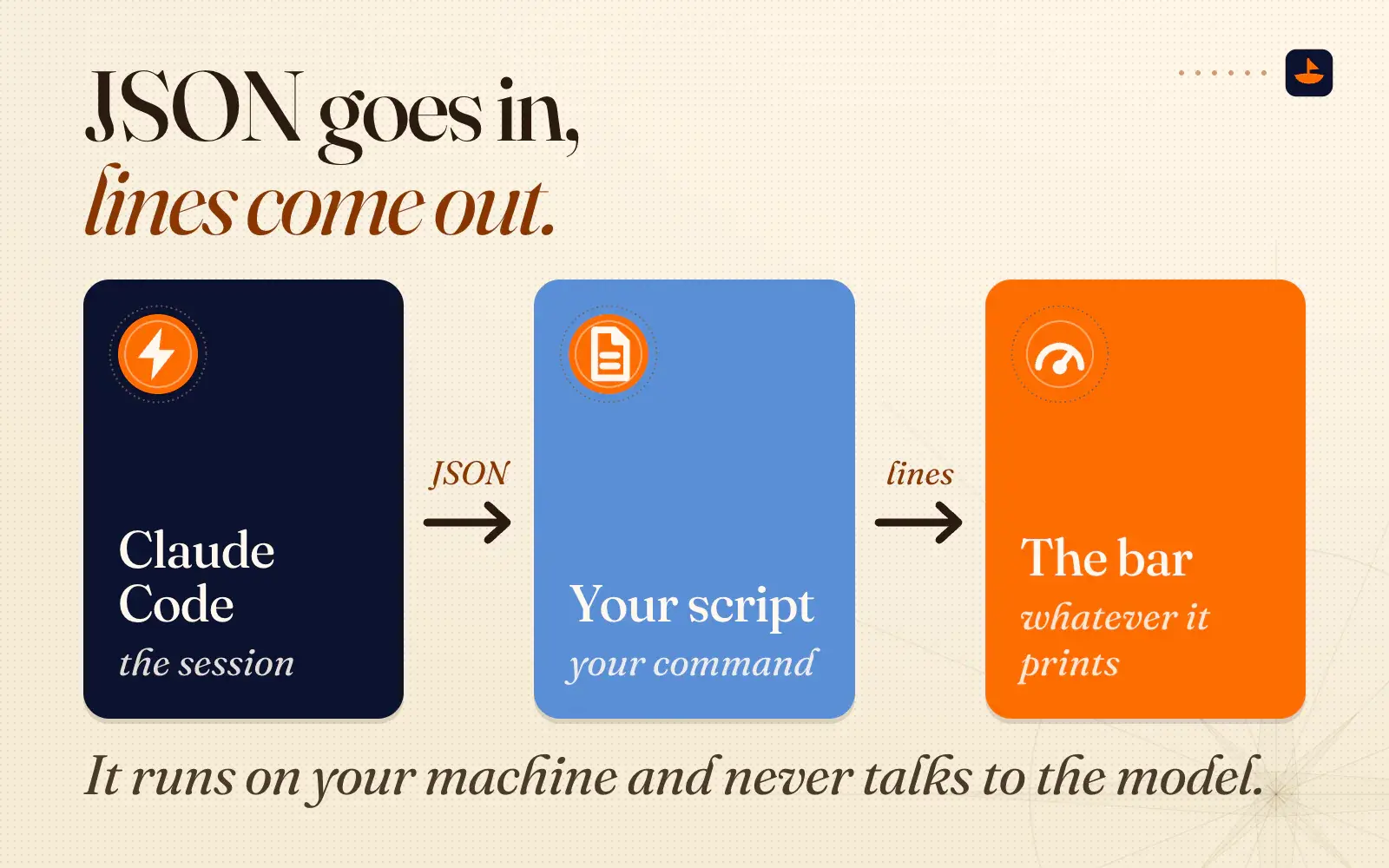
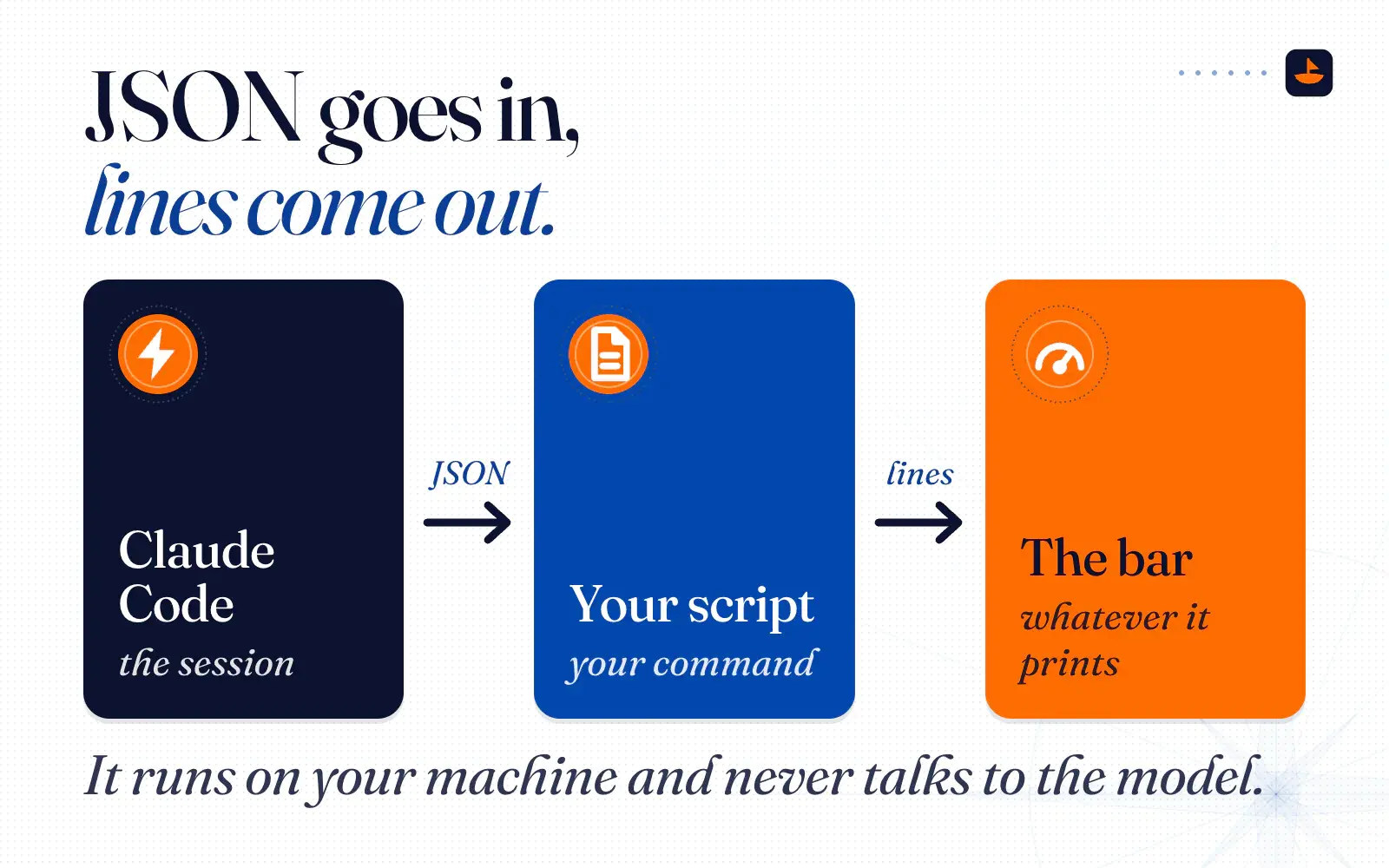
According to Anthropic's status line docs (checked November 2026), the JSON carries the model, the working folder, the session's ID and name, the path to the conversation transcript, the estimated cost, how full the context window is, and the effort level. Claude Pro, Max and Ultra subscribers also get their 5-hour and 7-day rate limits. Some fields only appear when they apply, like the open pull request for your branch. Your script reads what it wants and prints lines. Each line becomes a row, ANSI colors work, and OSC 8 escape codes turn text into links you can click in terminals that support them, like iTerm2, Kitty and WezTerm. Terminal.app shows the text but doesn't make it clickable.
Two facts shape everything else. First, the script runs on your machine and never talks to the model, so in the docs' words it "does not consume API tokens." Second, it isn't a live clock. Claude Code runs it when a session starts and again when something happens, for example when a new assistant message arrives, after /compact, or when you change the permission mode. Updates are batched over 300 milliseconds, and if a new one fires while your script is still running, the old run gets cancelled. So it has to be fast.
What mine shows
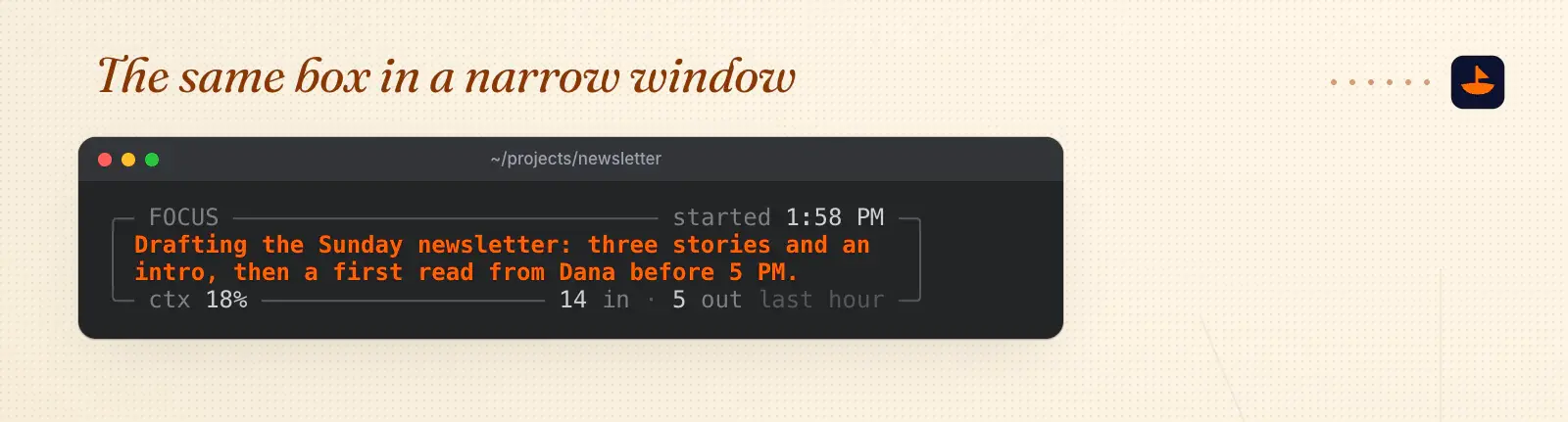
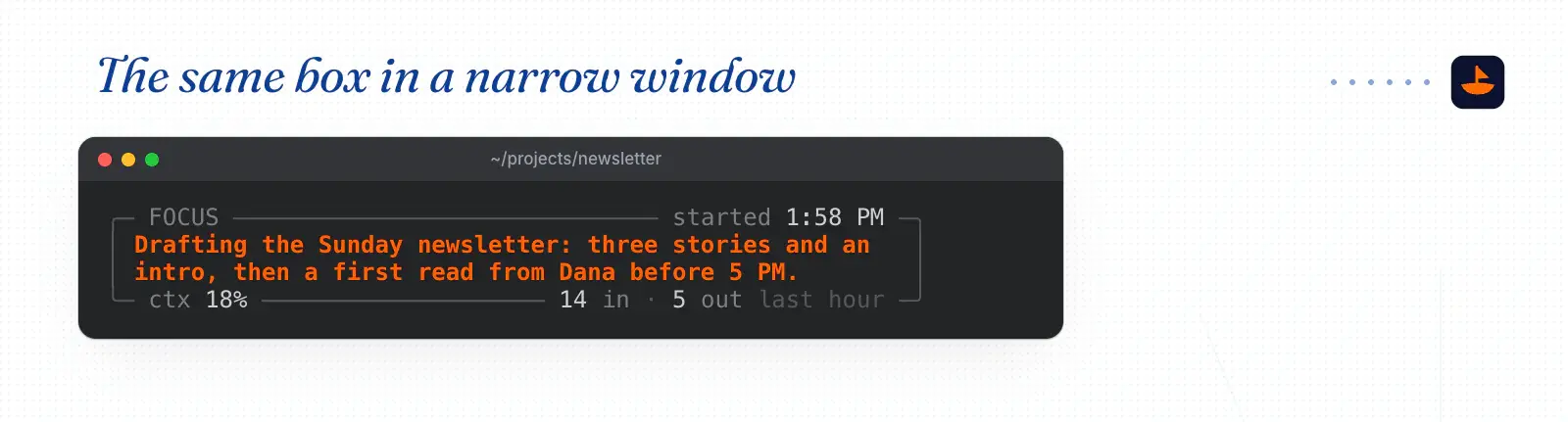
The default is one rounded box, three rows tall, with a fourth row only when the sentence wraps.
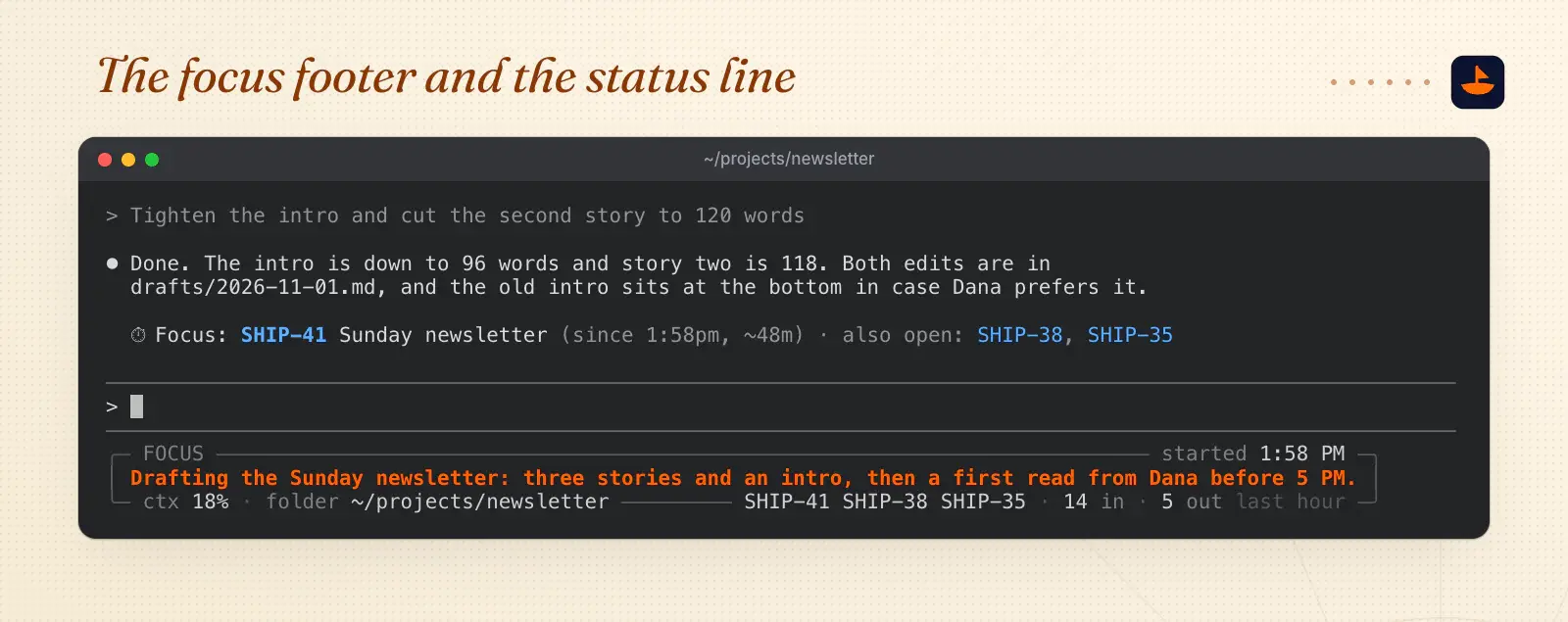
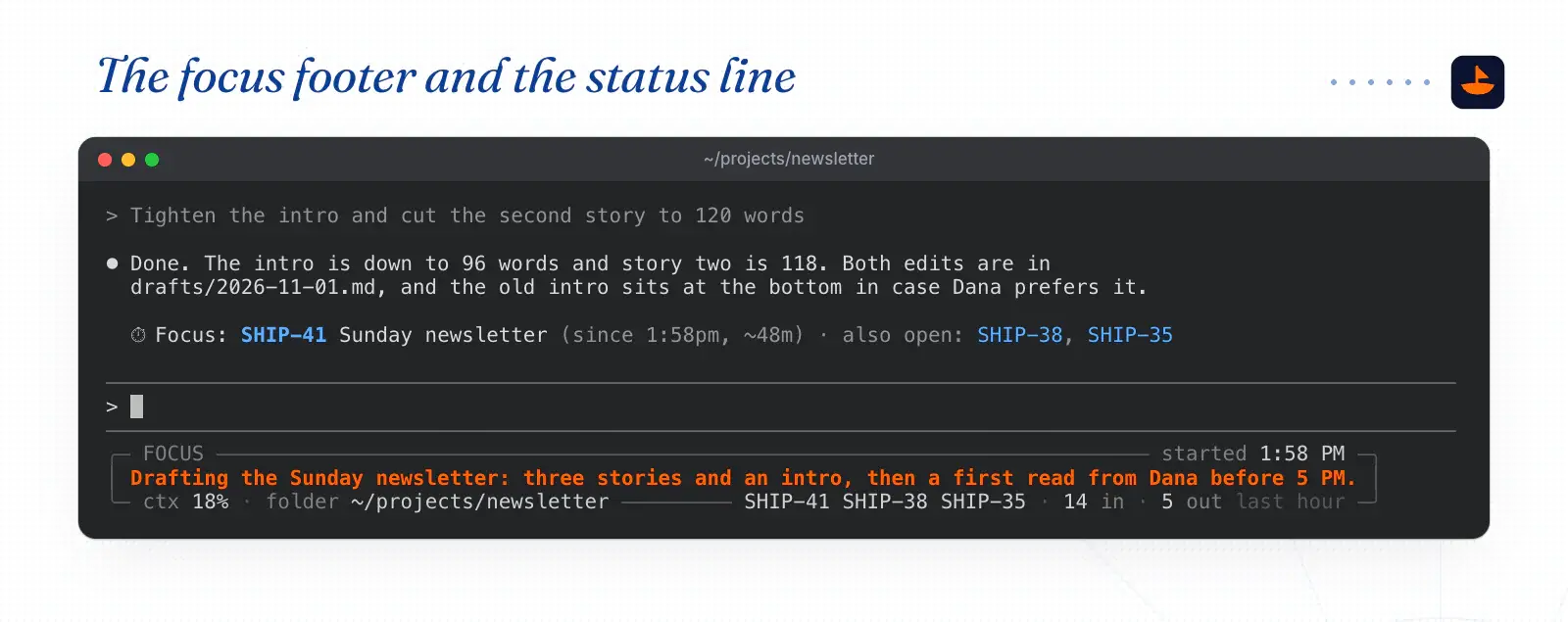
- Top border: the word FOCUS and the time this session started.
- Inside: one sentence about what this tab is for, in bold safety orange. It's the only bright thing in the box.
- Bottom left: how full the context window is, and the folder I'm in. The folder is labeled with the word "folder," because I didn't know what the little house icon in an earlier version meant.
- Bottom right: the issue IDs this tab is working on, as links, and how much came in and went out in the last hour.
Everything else is gray, except the context number, which turns red at 80%.
The sentence comes from the tab itself. Claude Code gives each session a title, and the title arrives in the JSON as session_name. My script uses it, so every tab shows its own job without me doing anything. When I want a fuller sentence, I pin one from that tab with focus.py now "…", and it shows only in the tab that set it.
The in and out counts need a word of explanation. "In" is information taken in: files read, searches run, pages fetched. "Out" is something made or sent: files written or edited, messages sent, records saved. The script reads the session's transcript, whose path is in the JSON, and sorts every tool call into one of the two. The same file counts once, and my own messages count as neither. A tab that shows 30 in and 0 out for an hour has been reading and hasn't made anything yet.
When the window gets narrow, the box gives things up in a fixed order. The context gauge shrinks to a number, then the issue links go, then the folder, then the context number, and the in and out counts go last. The sentence always stays.
There are no timers in it. The early versions had them, but the bar only redraws when something happens in the session, so a "24m" sits there unchanged while I'm away and is wrong when I come back. Now the top border shows when the session started, which stays true. The current docs list a refreshInterval setting that re-runs your script every N seconds, which would make a live timer possible. I haven't turned it on.
How it went from thirteen rows to three
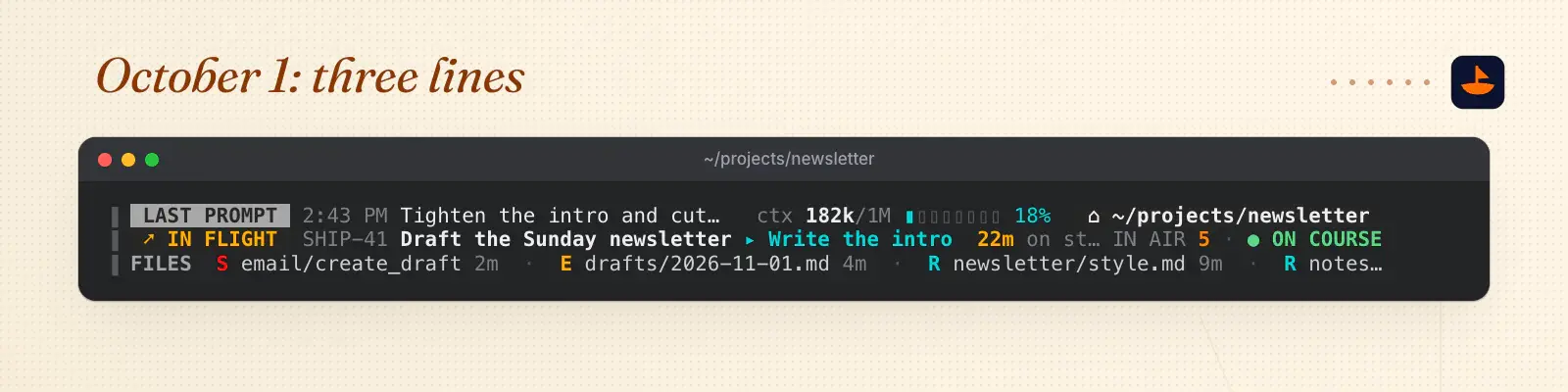
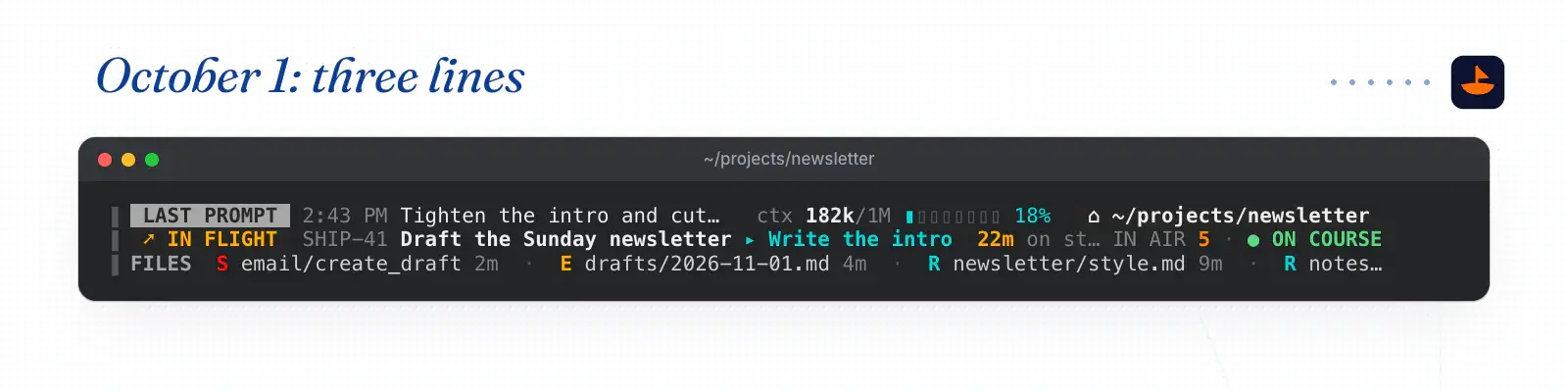
The first version, on October 1, was three lines. The first line held my last prompt, the context gauge and the folder. The second held the current task with a stage badge and a timer. The third listed the last four files Claude touched.
That same afternoon I wanted more. I asked for "four to five lines," a clock in the top right "with like a line around it" in red, and a moving ticker like SportsCenter's. A ticker has to move, and the status line only redraws on events, so the big board went into its own window. I call it the tower, and it gets its own section below.
On October 4 the status line itself became a big block: thirteen rows with a thick gray border, one or two sentences on what I was doing, how long ago Claude last made something, and in and out meters for the last hour.
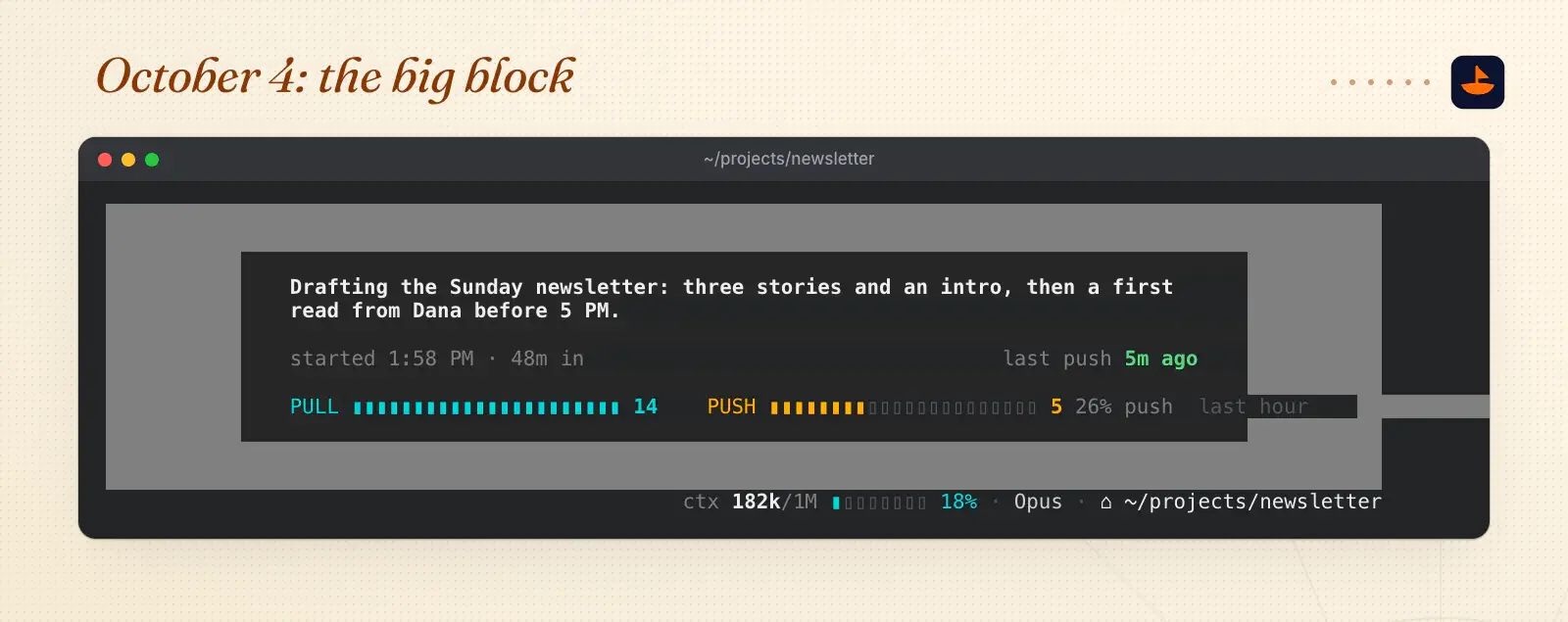
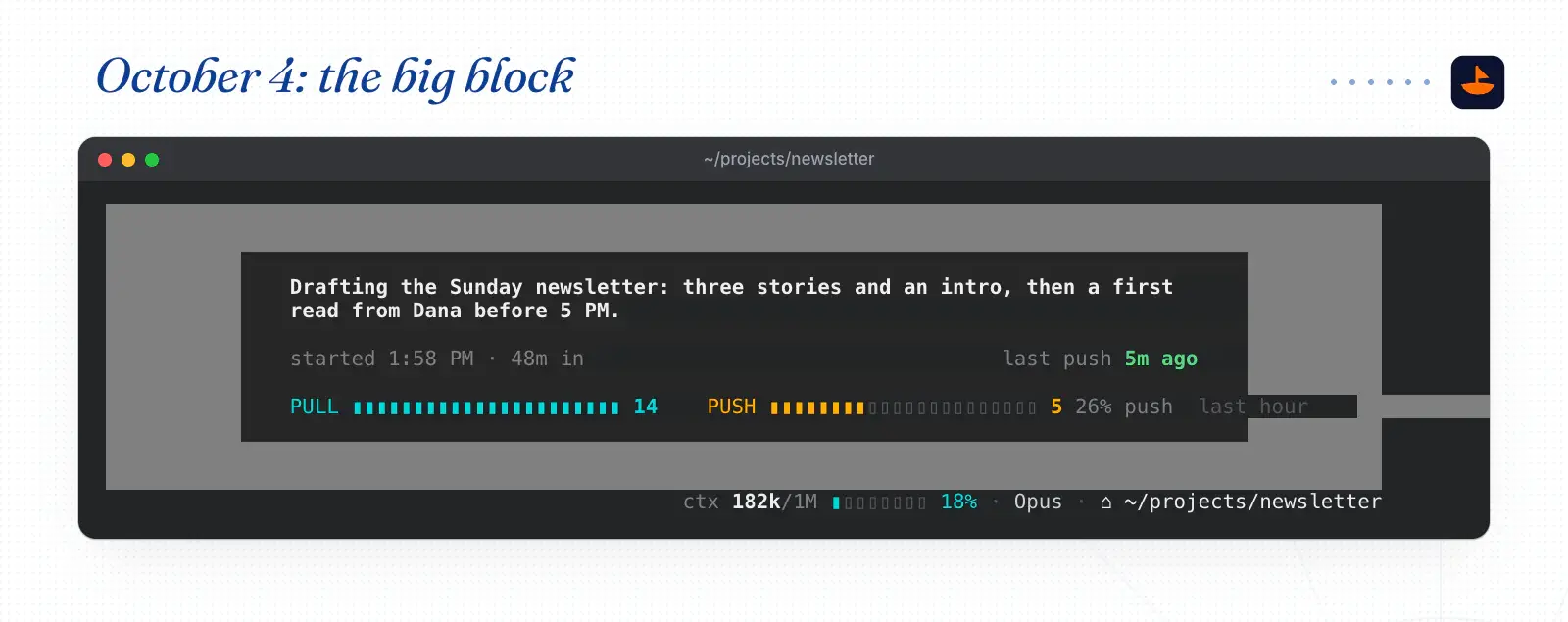
It also took up nearly half of my 28-row terminal. On October 12 I asked for it smarter and smaller, and it became the three-row box. The model name went too, since Claude Code already shows it.
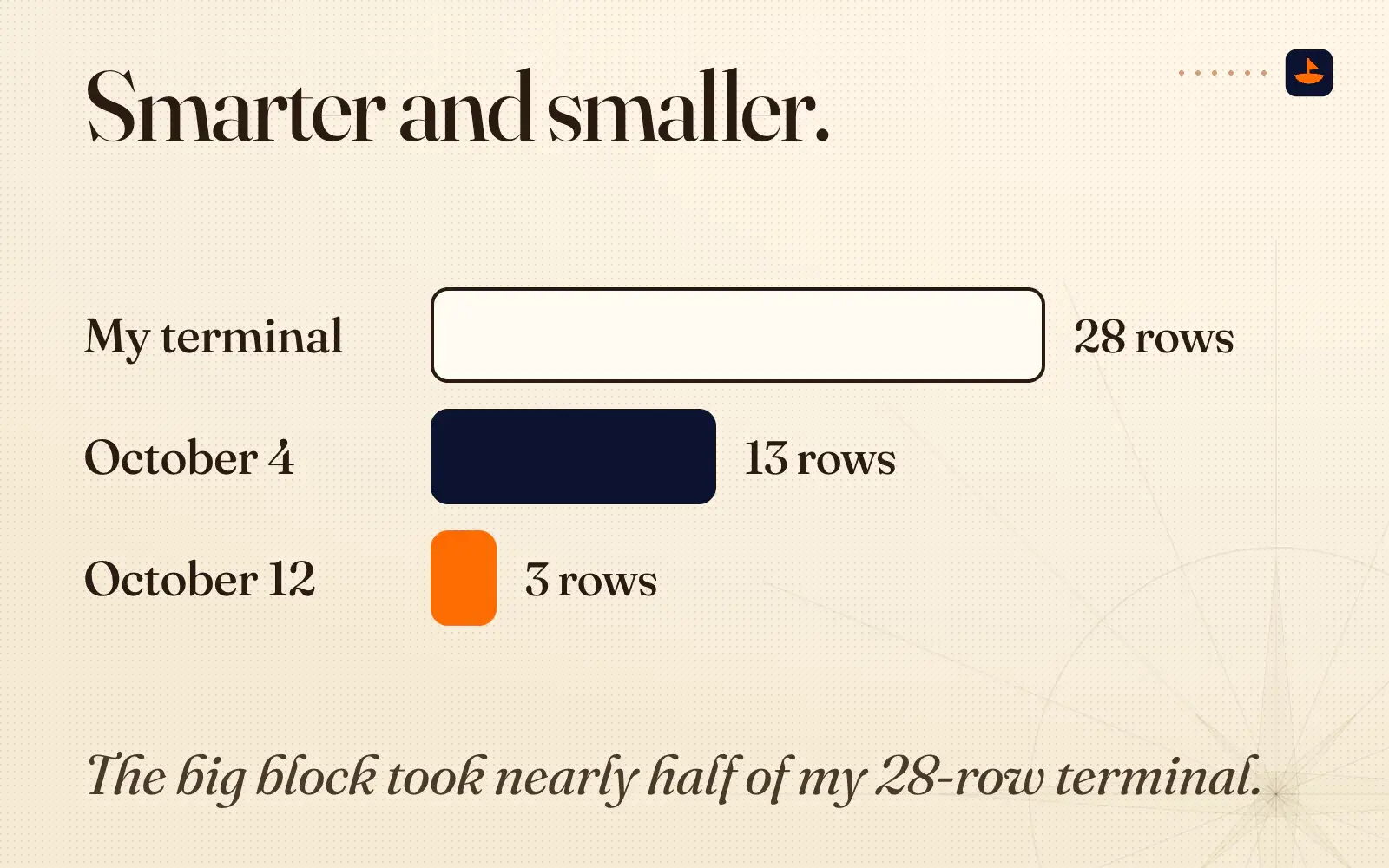
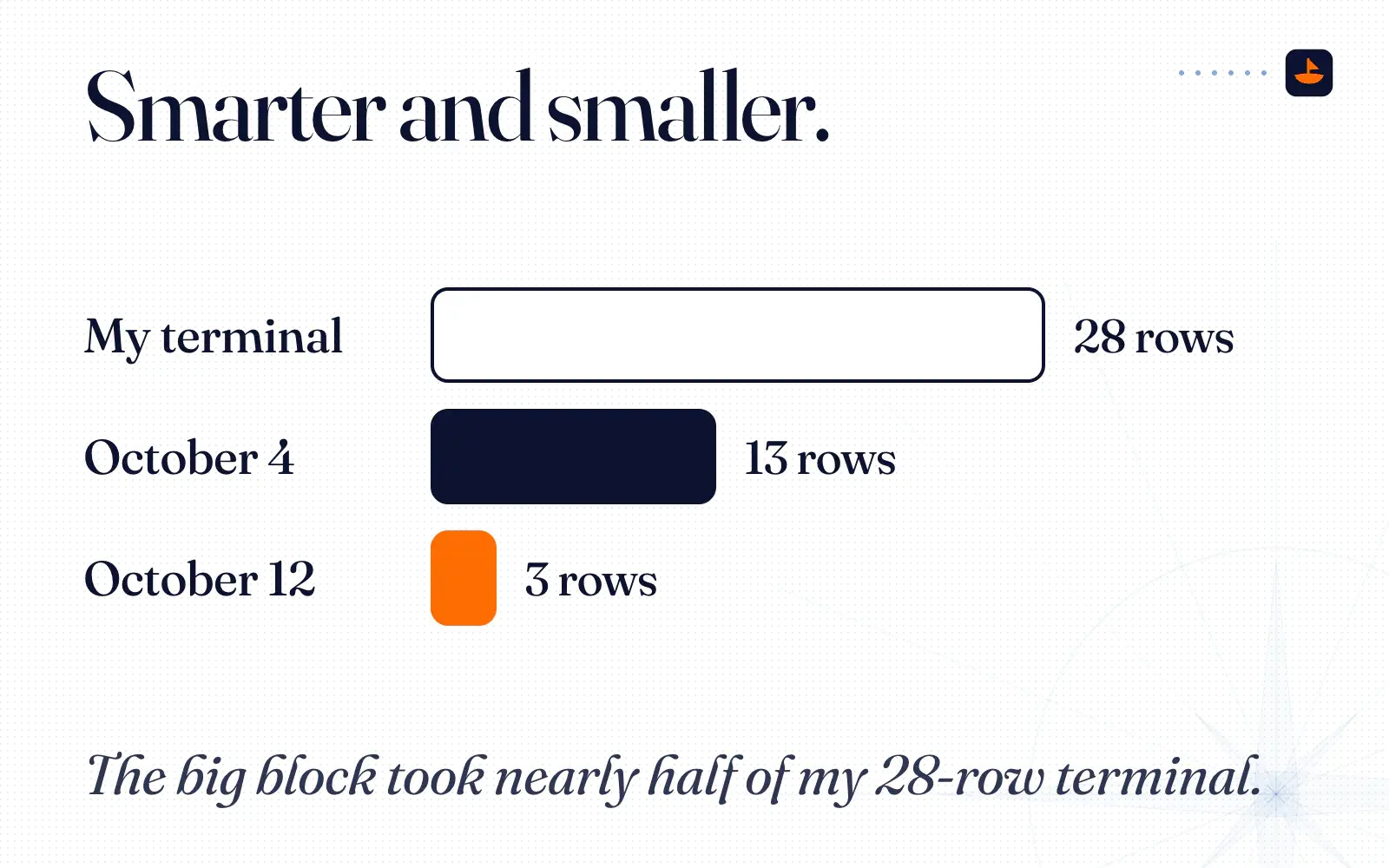
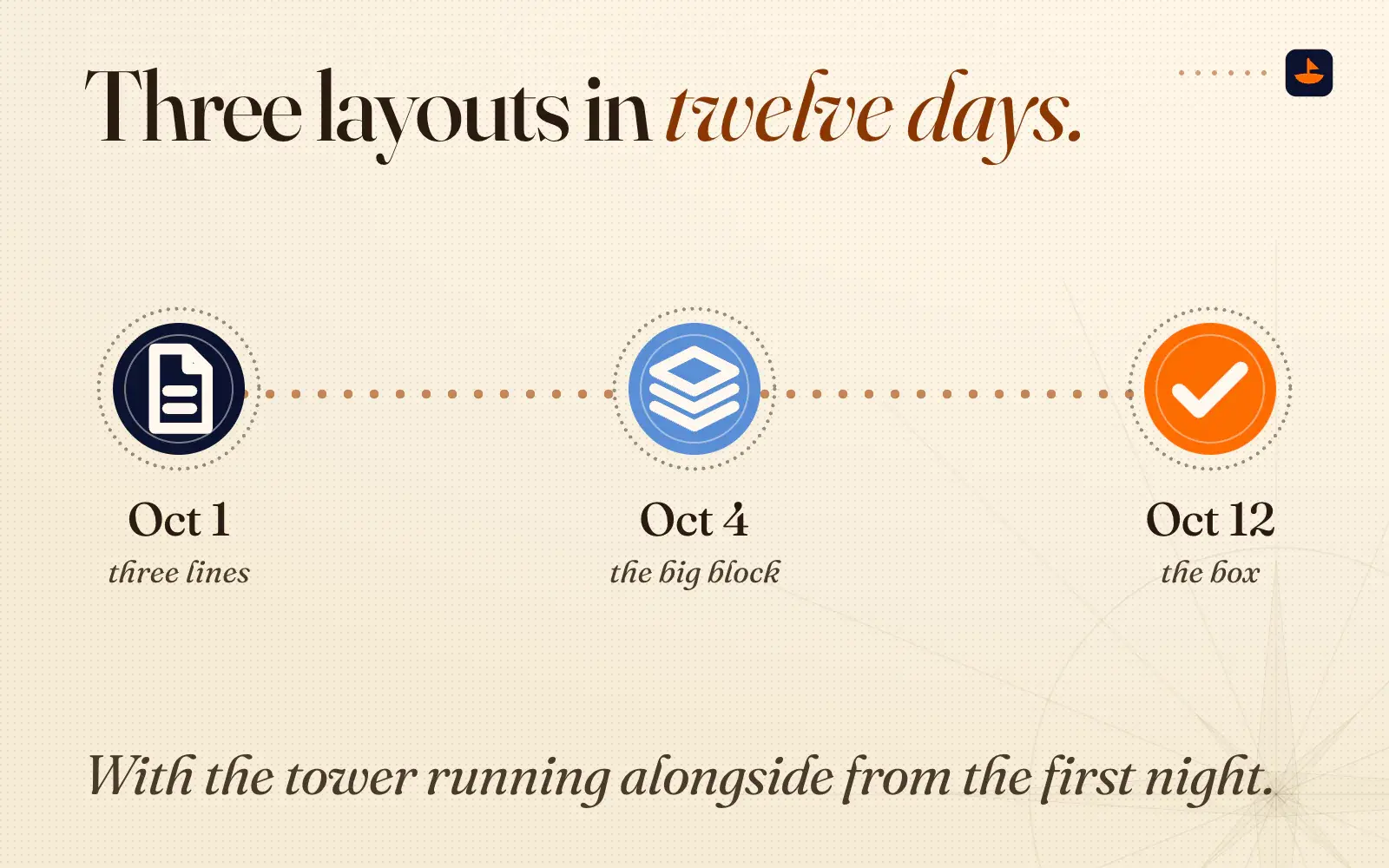
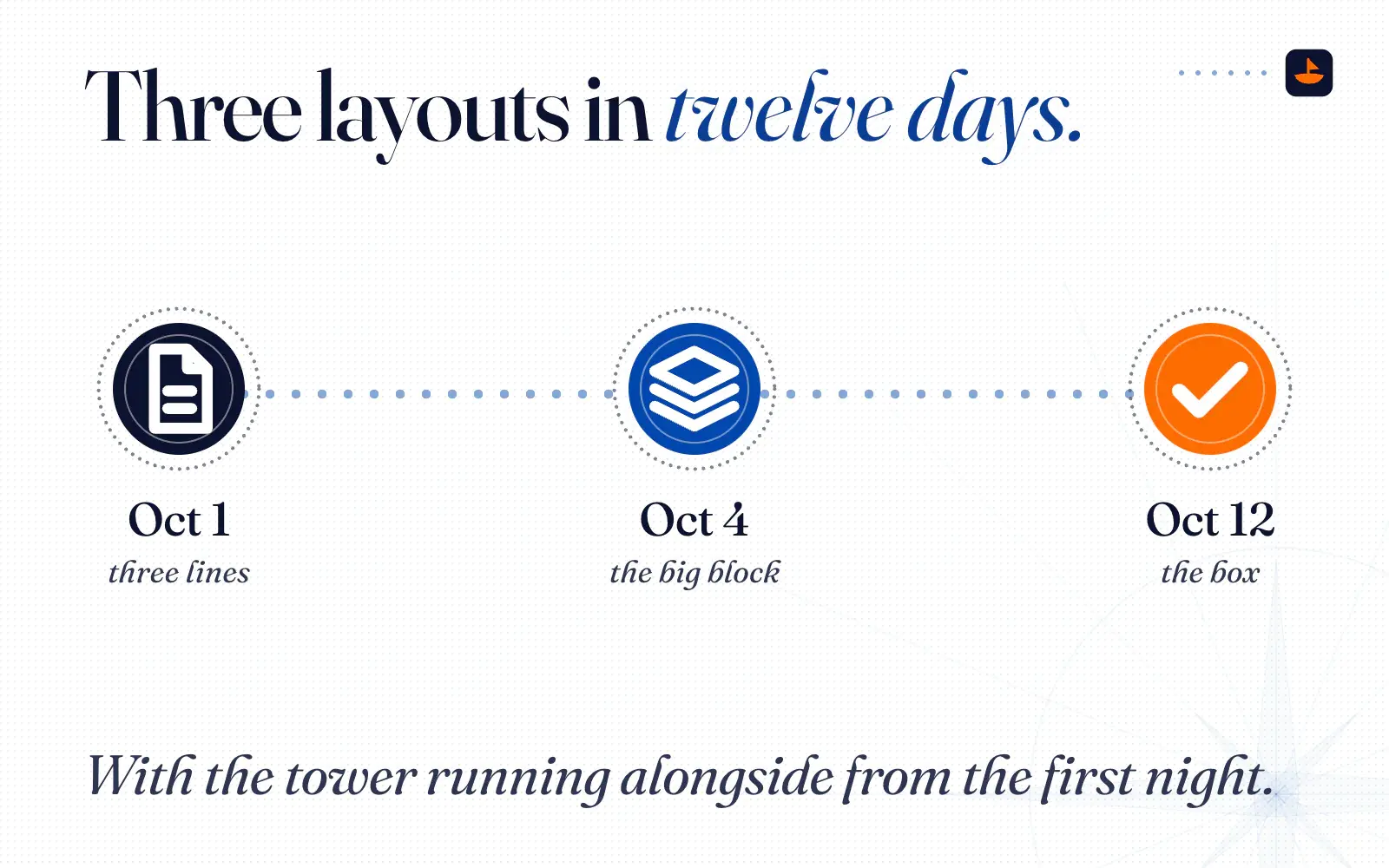
Three layouts in twelve days: three lines on October 1, the big block on October 4 and the box on October 12, with the tower running alongside from the first night.
The tower
The tower is a separate terminal window docked at the top of my screen. It redraws several times a second and rereads its files every two seconds, so it can do what the status line can't, which is move.
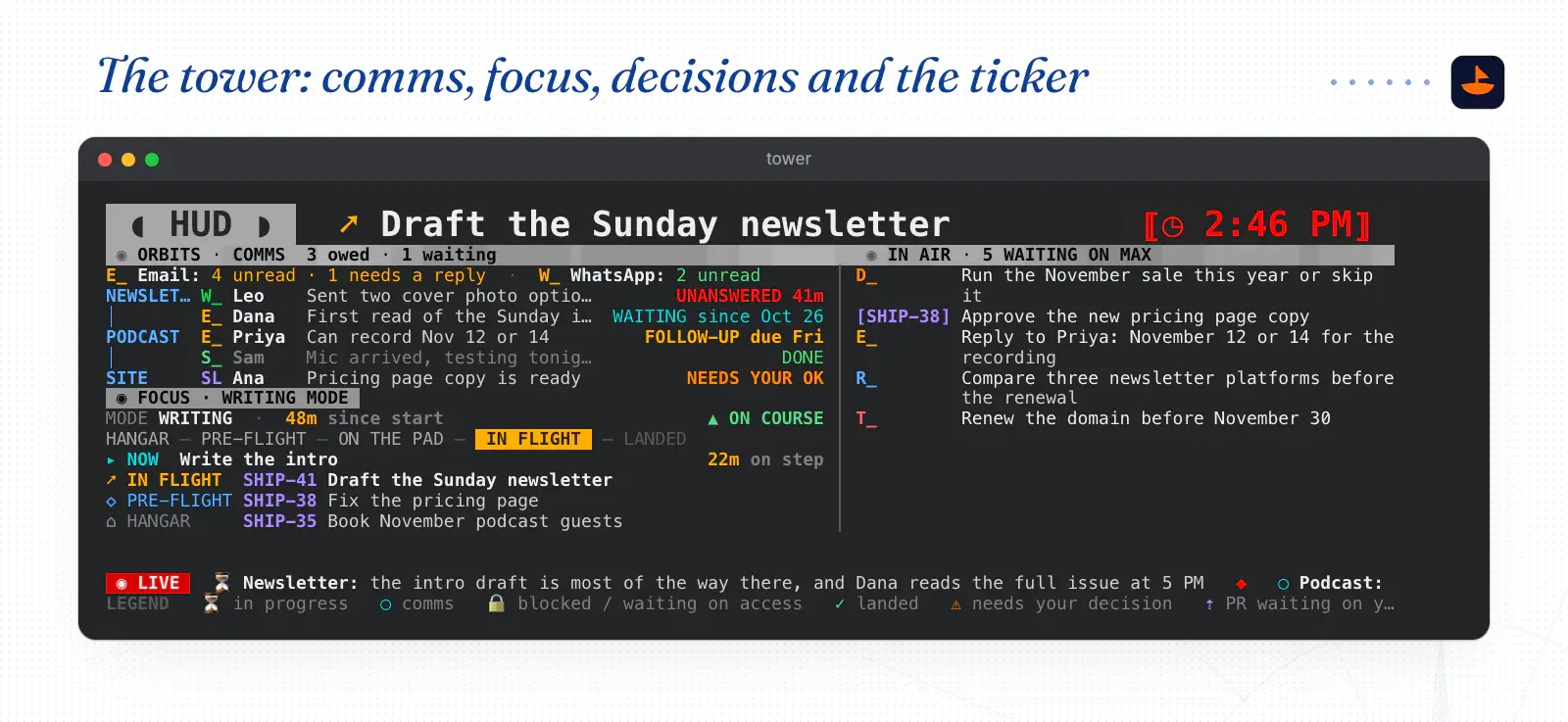
The first tower had three columns. Comms sat on the left, with messages grouped by project and a status on each, like unanswered, waiting, follow-up due or needs your OK. Focus sat in the middle: the mode I'm in, the launch stage of the current task, the step I'm on and how long I've been on it. Decisions waiting on me sat on the right. In a window narrower than 140 columns, comms stack on top of focus, as in the picture below. The red clock sits in the top right, where I asked for it.
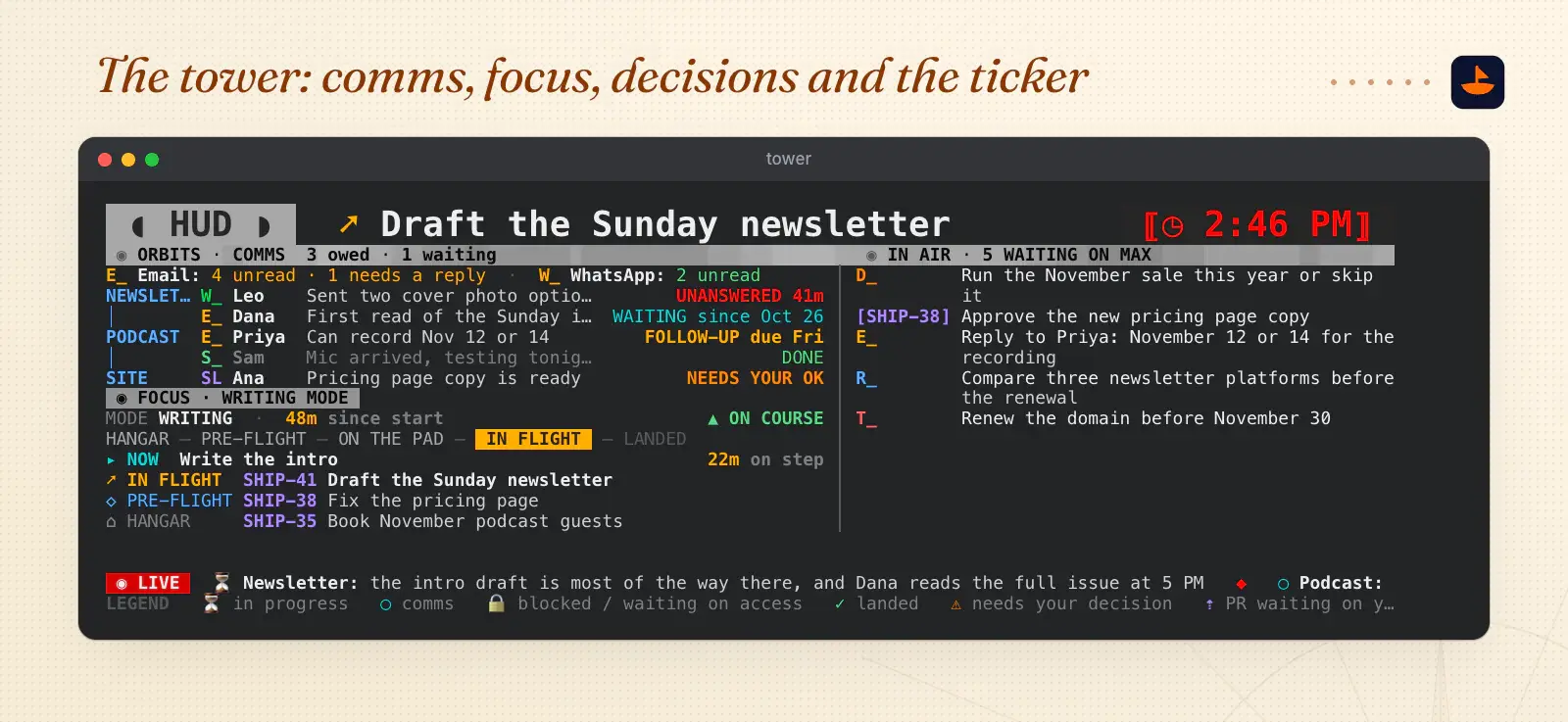
The stage names come from rocket launches. On the first day I said, "you can say hangar instead of like backlog, because like a plane or whatever goes into the hangar." A task moves from Hangar to Pre-flight, On the pad, In flight and Landed, with Hold for blocked work and Scrubbed for cancelled work.
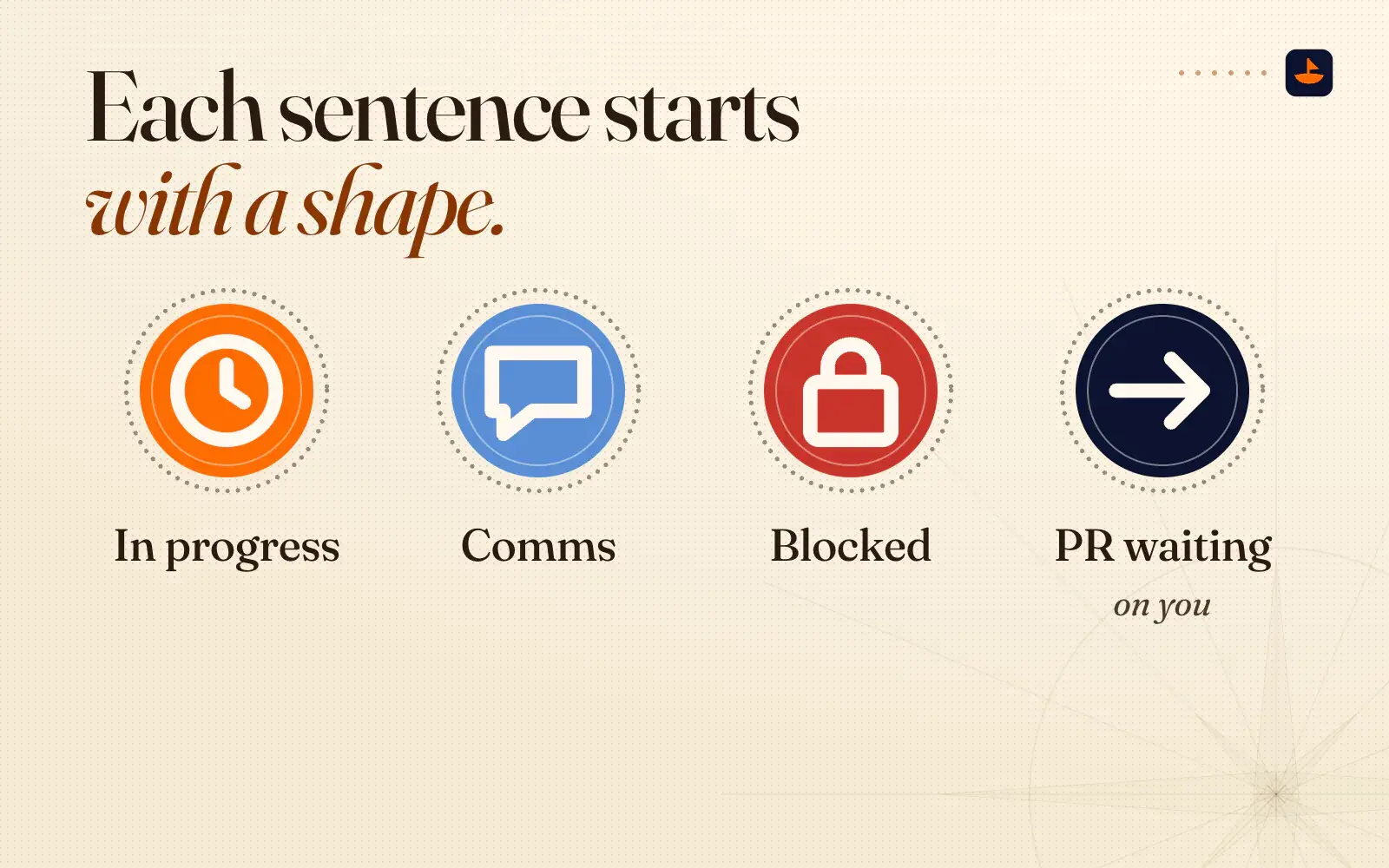
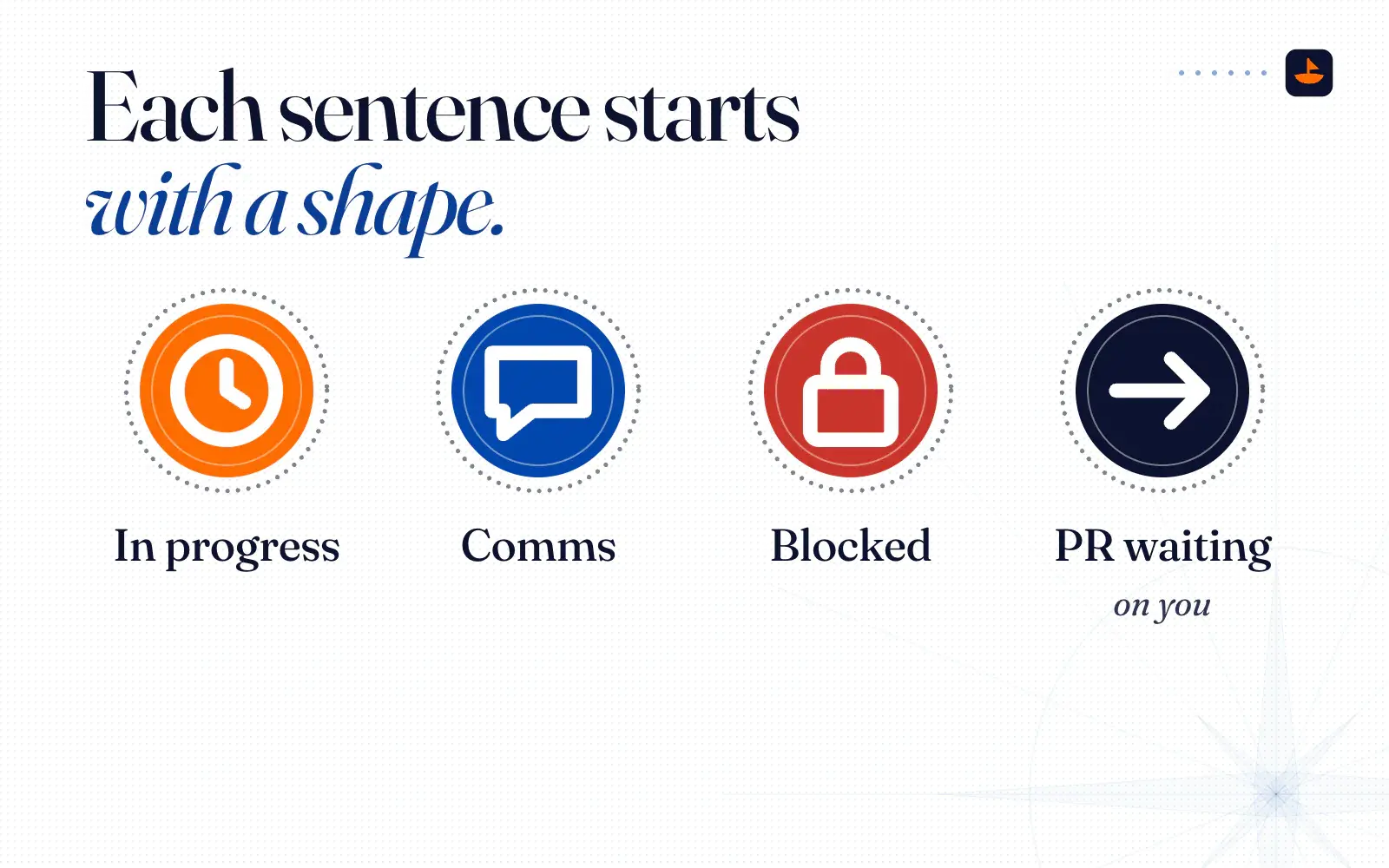
The bottom row is the ticker, a scrolling line of full sentences in the style of a news crawl. Each sentence starts with a shape, so I can read the state before the words. My first ask was simple: "maybe hourglass means like in progress," a circle means communication, and GitHub shows "if there's any PRs pending my action." The finished legend has seven shapes: ⏳ in progress, ◯ comms, 🔒 blocked or waiting on access, ✓ landed, ⚠ needs your decision, ⇡ PR waiting on you, and ◷ calendar.
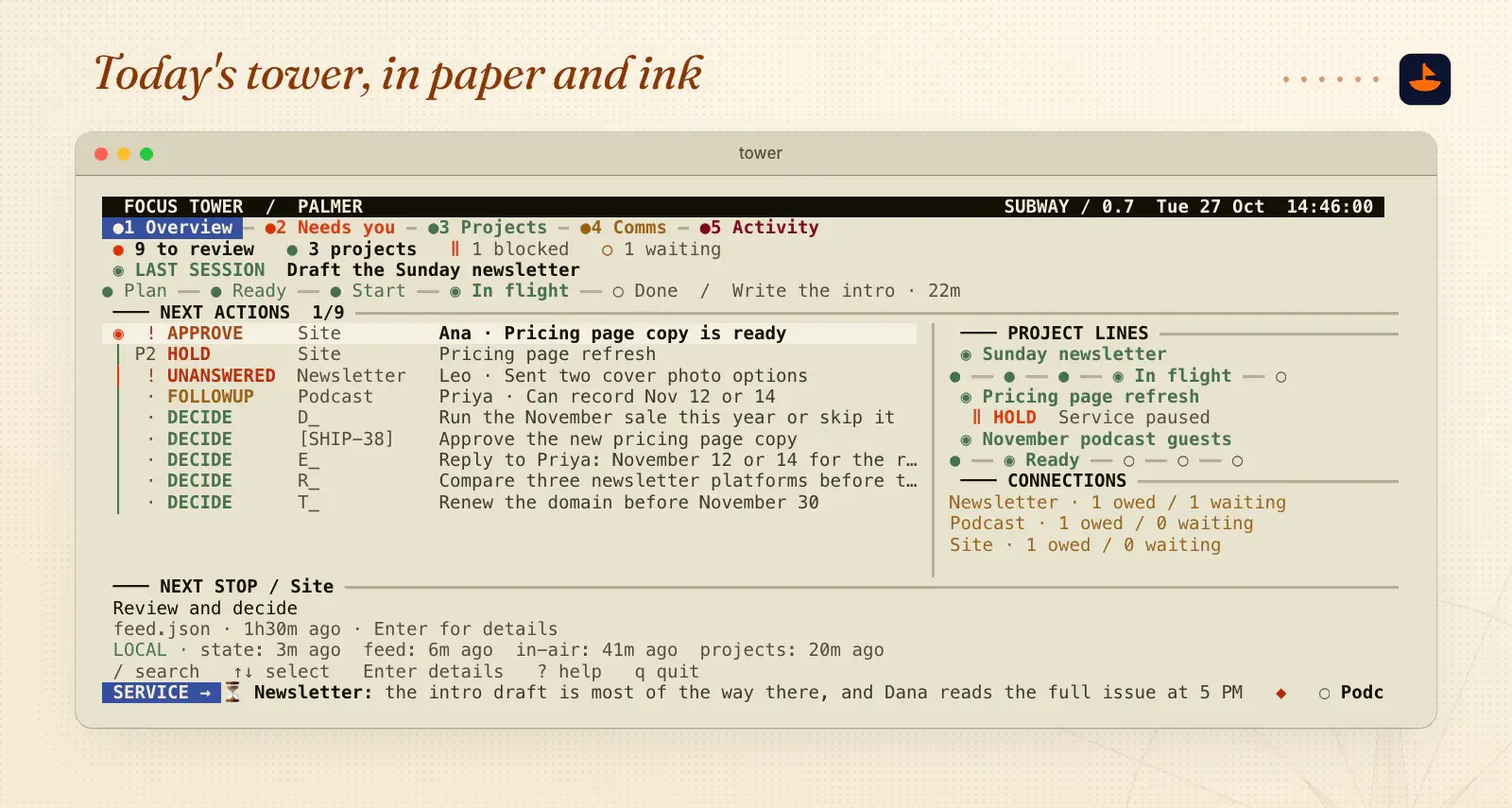
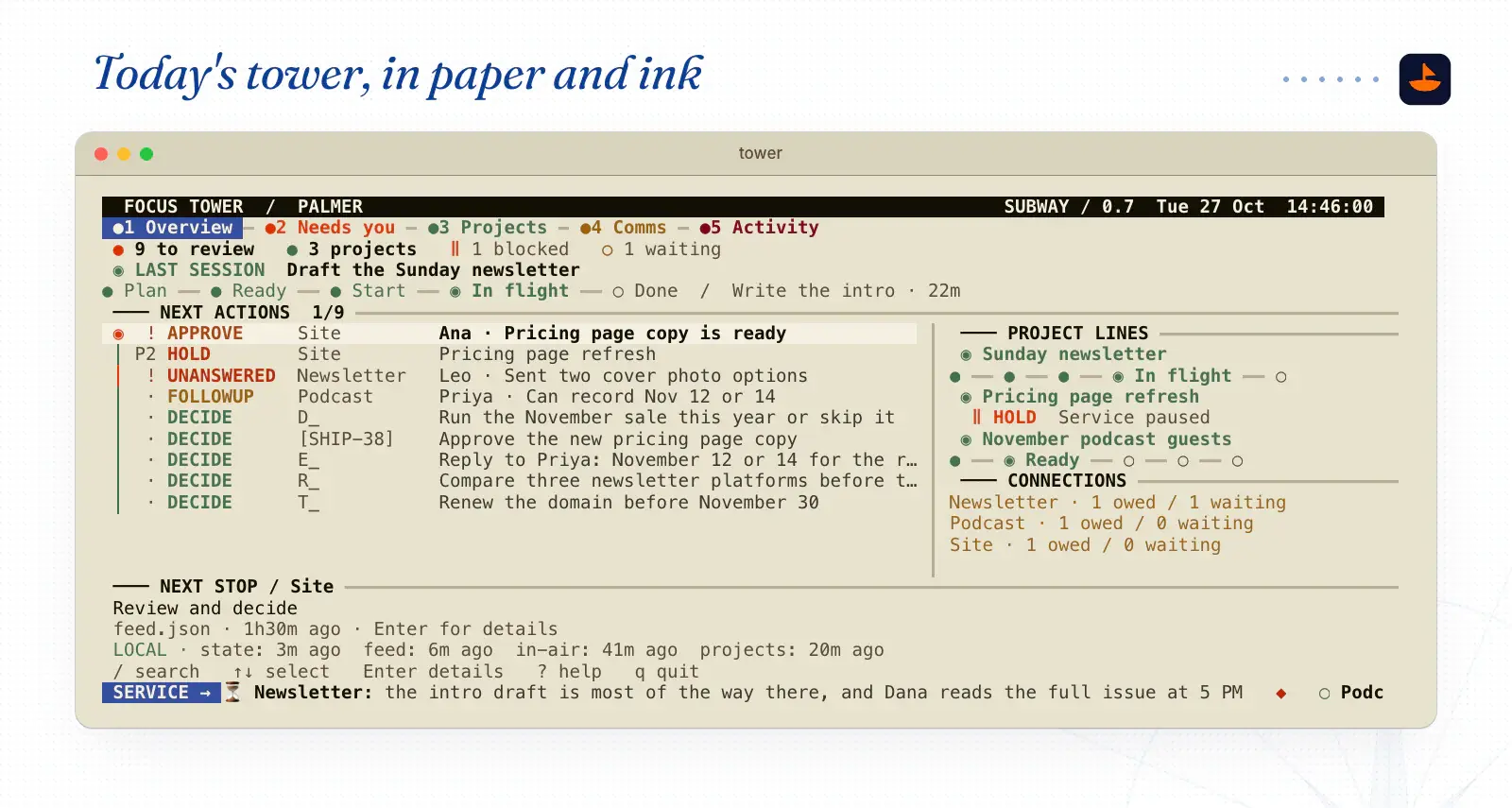
Today's tower is a second design, drawn in paper-and-ink colors like a subway map. It has five views you switch between with the number keys: Overview, Needs you, Projects, Comms and Activity. The ticker still runs along the bottom, and it still makes no network requests. It only reads files.
Where the data comes from
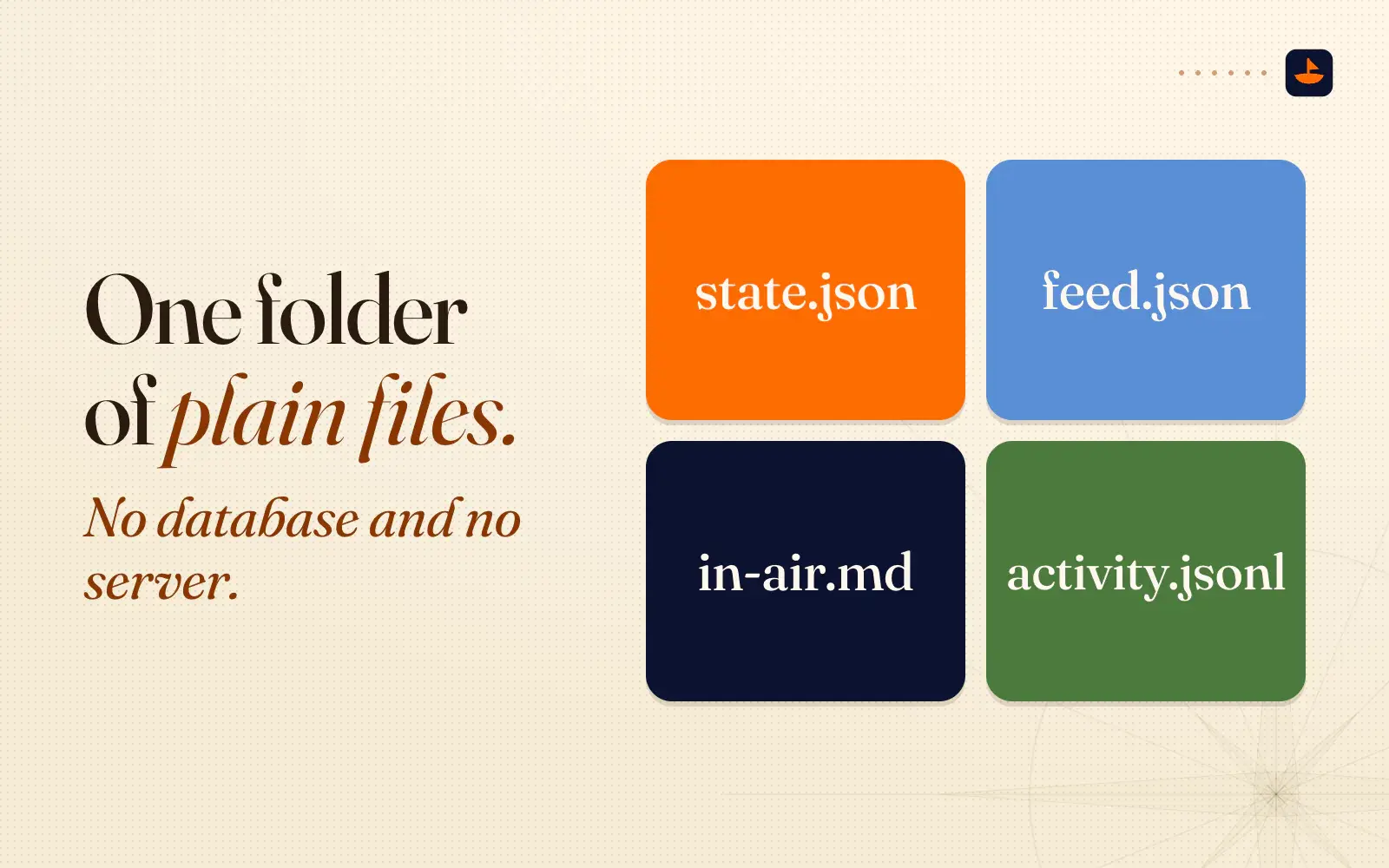
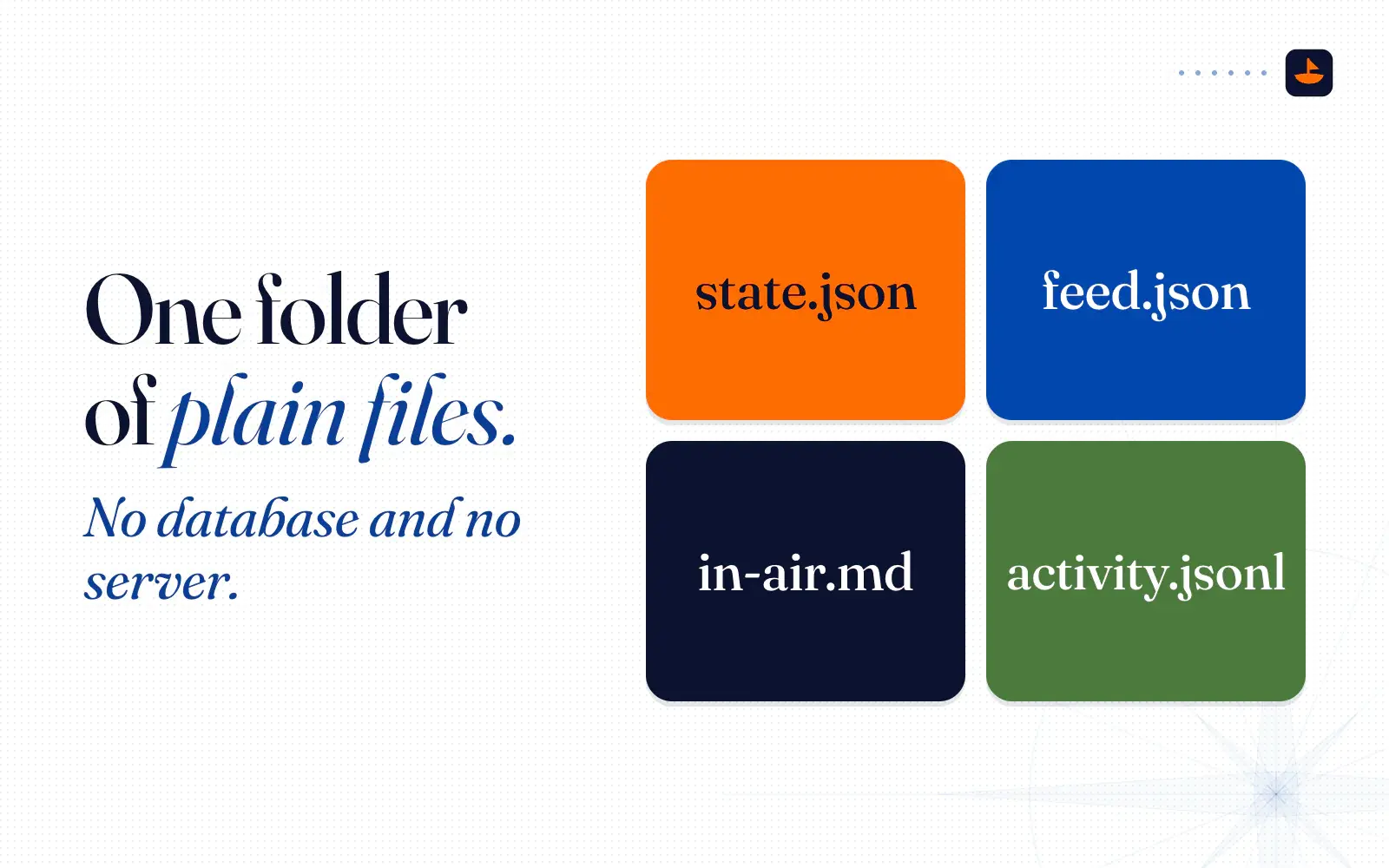
Everything the status line and the tower show lives in one folder of plain files. There's no database and no server. Like the folder in my Command Kit, both Claude and I can read every file in it.
- state.json: what I'm focused on, the tasks in play, their launch stages and the step I'm on.
- feed.json: comms threads by project, and the ticker sentences.
- in-air.md: a markdown list of decisions waiting on me.
- activity.jsonl: the last files read, edited, written or sent.
A small command-line tool, focus.py, writes them. focus.py set binds a mode and its tasks, focus.py sub "Write the intro" starts a step, focus.py air add parks a decision, and focus.py tick adds a ticker sentence. Claude runs those. My /go command, which binds a chat to a task, tells Claude to update the folder with focus.py whenever the focus changes, so the HUD stays in sync as a side effect of the conversation.
The outside world comes in through a collector. It's a plain Python script that macOS runs through launchd every 900 seconds, which is every 15 minutes, and once at login. It's built to pull my calendar through its secret iCal address, my open issues from Linear's API, and the recording lists from Plaud and Talat, the two recorders I use. The keys live in the macOS Keychain and are read only while it runs. Each source is its own partition, so when one fails, its last good records stay and its status says so. There's no model anywhere in that loop.
That was the plan from the first day. When Claude laid it out, I read one line of its answer out loud: "The HUD itself costs zero credits. The feeds will be small scripts on a timer that call each service's API directly. No AI involved." A few minutes later I was explaining it to the room: "It requires zero AI, and it can run twelve hours a day on a computer like that for basically free. It's like an intel feed that doesn't even need AI to work. It's a script. It's just a program."
On day one I also asked for Slack and GitHub on the ticker. As of this writing the collector reads the calendar, the issues and the two recorders, and the ticker sentences are written with focus.py tick. The status line never waits on any of it. It reads local files and the JSON Claude Code hands it, and nothing else.
The footer that came first
The HUD wasn't my first try at this. On September 30 I showed some people a rule I'd been testing in my Claude setup. At the bottom of every reply, Claude writes what I'm focused on, how long I've been on it, and what else is open. You can see it above the prompt in the first screenshot. Here's how I described it that day: "It uses my computer's clock to see how long I've been focusing on that task, and then it reminds me if I've opened other tasks just casually at the bottom of every single one of my chats."
It's the same idea as Session, a focus timer I really like, moved into the chat. It pairs with a habit: "I treat every new chat with Claude as a single task, and then I archive it the second I'm done with it." I also asked for "a little extra killer feature," links to the issues themselves, so each ID in my footer opens the issue in the tracker's desktop app.
The footer isn't a script. It's a rule in my CLAUDE.md file plus the /go command, and Claude works out the time again on every reply. Like the status line, it only updates when Claude speaks, so the minutes are as of the last reply. If you want one, paste this into your CLAUDE.md:
## Focus footer

When I tell you what this chat is for, note the task and the start time (check the clock with the date command).
End every reply with one line in this shape:

⏱ Focus: <task> (since <start time>, ~<minutes elapsed>) · also open: <other tasks I've mentioned, or none>

Recompute the elapsed time from the clock on every reply. Never guess it.
If I haven't told you the task yet, leave the footer out.
How to change it
Most of my changes happened by talking. I'd look at the bar, tell Claude what was wrong, and Claude would edit the script. That's how I got the clock on day one: "I want the time to actually be on the top right of the bar, as close to the top and smaller." The docs say an edited script shows up the next time something triggers a redraw. A few habits keep that loop safe:
- Keep old layouts behind a switch. Every layout is still in my file. An environment variable,
HUD_BLOCK, picks one: the box by default,bigfor the October 4 block,compactfor a slimmer version of it, and0for the original three lines. When I try something new, the old one is one setting away. - Test without Claude Code. Save one real JSON payload to a file and pipe it in:
HUD_FORCE_COLUMNS=120 python3 hud.py < sample.json. A second variable,HUD_DIR, points the script at a folder of fake files. That's how every screenshot in this post was made. - Never break the bar. A script that crashes or exits with an error leaves the status line blank. Mine wraps everything in one try block and prints a one-line error instead.
- Know your width. Claude Code captures the script's output, so the usual terminal-size calls can't see the window. Mine walks up the process tree to find the terminal, remembers which one it is for five minutes, and reads the width fresh each time. The current docs say Claude Code sets
COLUMNSandLINESfor your script, so start there. - Keep the network out of it. Anything slow belongs in a collector that writes a file. The status line just reads the file.
Adding a source always follows that last rule. Write a script that fetches one thing and saves a small file in the folder, run it on a timer, and teach the status line or the tower to read the file. On a Mac, Apple's guide says "the preferred way to add a timed job is to use launchd," and the StartInterval key starts the job every N seconds. Here's a minimal one that runs a collector every 15 minutes. Save it as ~/Library/LaunchAgents/local.hud-collector.plist:
<?xml version="1.0" encoding="UTF-8"?>
<!DOCTYPE plist PUBLIC "-//Apple//DTD PLIST 1.0//EN" "http://www.apple.com/DTDs/PropertyList-1.0.dtd">
<plist version="1.0">
<dict>
  <key>Label</key>
  <string>local.hud-collector</string>
  <key>ProgramArguments</key>
  <array>
    <string>/usr/bin/python3</string>
    <string>/Users/YOU/.claude/hud-collect.py</string>
  </array>
  <key>StartInterval</key>
  <integer>900</integer>
  <key>RunAtLoad</key>
  <true/>
</dict>
</plist>
Replace YOU with your username, because launchd doesn't expand ~. Load it once with launchctl bootstrap gui/$(id -u) ~/Library/LaunchAgents/local.hud-collector.plist.
When you'd rather describe the change than write it, hand Claude this:
Read ~/.claude/hud.py, my Claude Code status line.

Change: [what you want, e.g. "show the open pull request number at the bottom right"]

Rules:
- Read only the JSON on stdin and local files. No network calls.
- It must finish fast. If something is slow, write a separate script that saves it to a file, and have the status line read the file.
- Never crash. On any error, print one short line instead.
- Before you save, pipe a sample JSON into it at 60 and 120 columns (COLUMNS=60 / COLUMNS=120) and show me both outputs.
Build your own
You don't need my folder, my tower or my collector to get the main benefit. This starter draws the same kind of box: a sentence in orange, the context percentage, the folder and your 5-hour limit. It's 76 lines of Python with nothing to install, and it runs on Python 3.9 or newer.
#!/usr/bin/env python3
"""A three-row focus box for Claude Code's status line. Standard library only.

  Status line:  Claude Code pipes session JSON in; this prints the box.
  Set focus:    python3 ~/.claude/hud.py now "What I'm doing in this tab"
  Add a source: anything a script writes to ~/.claude/hud/note.txt shows bottom right.
"""
import json, os, re, sys, time

HOME = os.path.expanduser("~/.claude/hud")
FOCUS, NOTE = os.path.join(HOME, "focus.json"), os.path.join(HOME, "note.txt")
R, B = "\033[0m", "\033[1m"
def fg(n): return "\033[38;5;%dm" % n
GRAY, DIM, LIGHT, RED, ORANGE = fg(240), fg(244), fg(252), fg(196), fg(202)
ANSI = re.compile(r"\033\[[0-9;]*m")
def vlen(s): return len(ANSI.sub("", s))

def set_focus(text):
    os.makedirs(HOME, exist_ok=True)
    with open(FOCUS, "w") as f:
        json.dump({"text": text, "t": time.time(), "session": os.environ.get("CLAUDE_CODE_SESSION_ID", "")}, f)

def read(path, default):
    try:
        with open(path) as f: return json.load(f) if path.endswith(".json") else f.read().strip()
    except Exception: return default

def wrap(text, width, rows=2):
    lines, cur = [], ""
    for word in text.split():
        if cur and len(cur) + 1 + len(word) > width: lines.append(cur); cur = word
        else: cur = (cur + " " + word).strip()
    lines.append(cur)
    if len(lines) > rows: lines = lines[:rows - 1] + [lines[rows - 1][:width - 1] + "…"]
    return [l[:width] for l in lines]

def seg(parts):
    parts = [p for p in parts if p]
    return " %s " % (GRAY + " · " + R).join(parts) if parts else ""

def border(left, right, width, a, b):
    fill = max(1, width - vlen(left) - vlen(right) - 4)
    return GRAY + a + "─" + R + left + GRAY + "─" * fill + R + right + GRAY + "─" + b + R

def render(info, width):
    focus, sid = read(FOCUS, {}), info.get("session_id", "")
    pinned = focus.get("text") if focus.get("session") in ("", sid) else ""
    text = pinned or info.get("session_name") or "New session, nothing set yet"
    started = time.strftime(" %-I:%M %p ", time.localtime(focus["t"])) if pinned else ""
    top = border(DIM + " FOCUS " + R, (DIM + " started" + R + LIGHT + started + R) if started else "", width, "╭", "╮")
    body = ["%s│%s %s%s%s%s %s│%s" % (GRAY, R, ORANGE + B, l, R, " " * (width - 4 - len(l)), GRAY, R)
            for l in wrap(text, width - 4)]
    pct = (info.get("context_window") or {}).get("used_percentage")
    ctx = "%sctx%s %s%d%%%s" % (DIM, R, RED if (pct or 0) >= 80 else LIGHT, round(pct), R) if pct is not None else ""
    cwd = (info.get("workspace") or {}).get("current_dir") or ""
    folder = "%sfolder%s %s" % (DIM, R, cwd.replace(os.path.expanduser("~"), "~", 1)) if cwd else ""
    five = ((info.get("rate_limits") or {}).get("five_hour") or {}).get("used_percentage")
    right = [read(NOTE, ""), "%s5h %d%%%s" % (DIM, round(five), R) if five is not None else ""]
    # Narrow window: drop the folder first, then the note, then the rate limit.
    for left_parts, right_parts in (([ctx, folder], right), ([ctx], right), ([ctx], right[1:]), ([ctx], [])):
        lt, rt = seg(left_parts), seg(right_parts)
        if vlen(lt) + vlen(rt) + 6 <= width: break
    return [top] + body + [border(lt, rt, width, "╰", "╯")]

def main():
    if sys.argv[1:2] == ["now"]:
        return set_focus(" ".join(sys.argv[2:]))
    try:
        info = json.loads(sys.stdin.read() or "{}")
        width = max(30, int(os.environ.get("COLUMNS") or 100) - 4)
        print("\n".join(render(info, width)))
    except Exception as e:  # a crashed script blanks the bar, so always print something
        print("HUD: %s" % e)

if __name__ == "__main__":
    main()
Save it as ~/.claude/hud.py, then add this to ~/.claude/settings.json:
{
  "statusLine": {
    "type": "command",
    "command": "python3 ~/.claude/hud.py",
    "padding": 0
  }
}
There are three ways to feed it:
- Name the tab. Run
/renamein Claude Code and the box shows that name. Without a name, it shows the title Claude Code generates for the session. - Pin a sentence. Ask Claude to run
python3 ~/.claude/hud.py now "Draft the Sunday newsletter". Claude Code passes each tab's session ID to the commands it runs, so the sentence shows only in that tab. Run it in a plain terminal instead and it shows in every tab. - Add a source. Anything a script writes to
~/.claude/hud/note.txtshows in the bottom right. That's the hook for a collector.
If you'd rather not touch a file at all, Claude Code's /statusline command takes a plain-English request and writes the script and the setting for you. Community projects like ccstatusline come with themes ready to go.
What you can do with it
Mine answers three questions: what is this tab for, how full is it, and is it making anything. The JSON gives you room for plenty more. A few ideas, all from fields the docs list today:
- The pull request for your branch and its review state, from
pr.numberandpr.review_state. - What the session has cost so far, from
cost.total_cost_usd. The docs call it an estimate that can differ from your bill. - Both rate limit windows, so the 5-hour limit doesn't surprise you.
- Which git worktree you're in, from
workspace.git_worktree, if you run several branches side by side. - Whether the prompt cache is still warm, from
prompt_cache.warm. - Clickable issue IDs, wrapped in OSC 8 links, if your terminal supports them.
Pick one thing you keep forgetting and put it there, and leave the rest out. In The Cadence Layer I put "dashboards you don't use" on the list of tools that get in the way. A status line can turn into one.
Are apps dead?
The day after I built the tower, I was describing it to someone at the gym. "I have not opened up an app itself in maybe like six months. I do everything through a terminal," I said. Then I went further: "I personally think apps are dead."
It's easy to hear more in that than the HUD actually does, so here's what it does and doesn't do. Every row on it comes from an app. The calendar, the issue tracker, the recorders and the message apps are still where the data lives, and the HUD only reads them. It doesn't act on anything either. The tower can show me that a message is waiting to be sent, but it never sends anything. When something needs doing, I ask Claude, and Claude works through each service's connector or API. The apps didn't leave my desk. On October 1 the terminal moved to my center monitor and the apps moved to the one on the left. What changed is where I look first.
That first evening I put it this way: "I think the future of work, weirdly enough, is going to look way less of this, where it's like you need a million apps to do a million things."
The short version
Claude Code's status line runs any script you give it, hands it the session as JSON, and costs no tokens. Use it for the one thing you need to see in every tab. Keep it small and fast, keep the network out of it, and put anything that moves in its own window. Copy the starter, give it a sentence, and see if you catch yourself looking at it. I post what I'm building on X @PalafoxPalmer.
Sources
- Customize your status line,
- Environment variables
- Scheduling Timed Jobs,
- launchd.plist(5)
- Hyperlinks in Terminal Emulators
- ccstatusline,
- Session,
- The Cadence Layer,